
Help & Support Centre
Help With Canva Templates
Accessing your templates
All our design files were created in Canva and can only be edited in Canva. If you don't have a Canva account, you can set one up here (please note that we are Canva affiliates and get a small fee for everyone who signs up through our link). Canva is a very easy platform that helps non-designers to create quality, professional designs.
If you need more tips on designing in Canva, you can view hundreds of tutorials here.
To access your design, follow these steps:
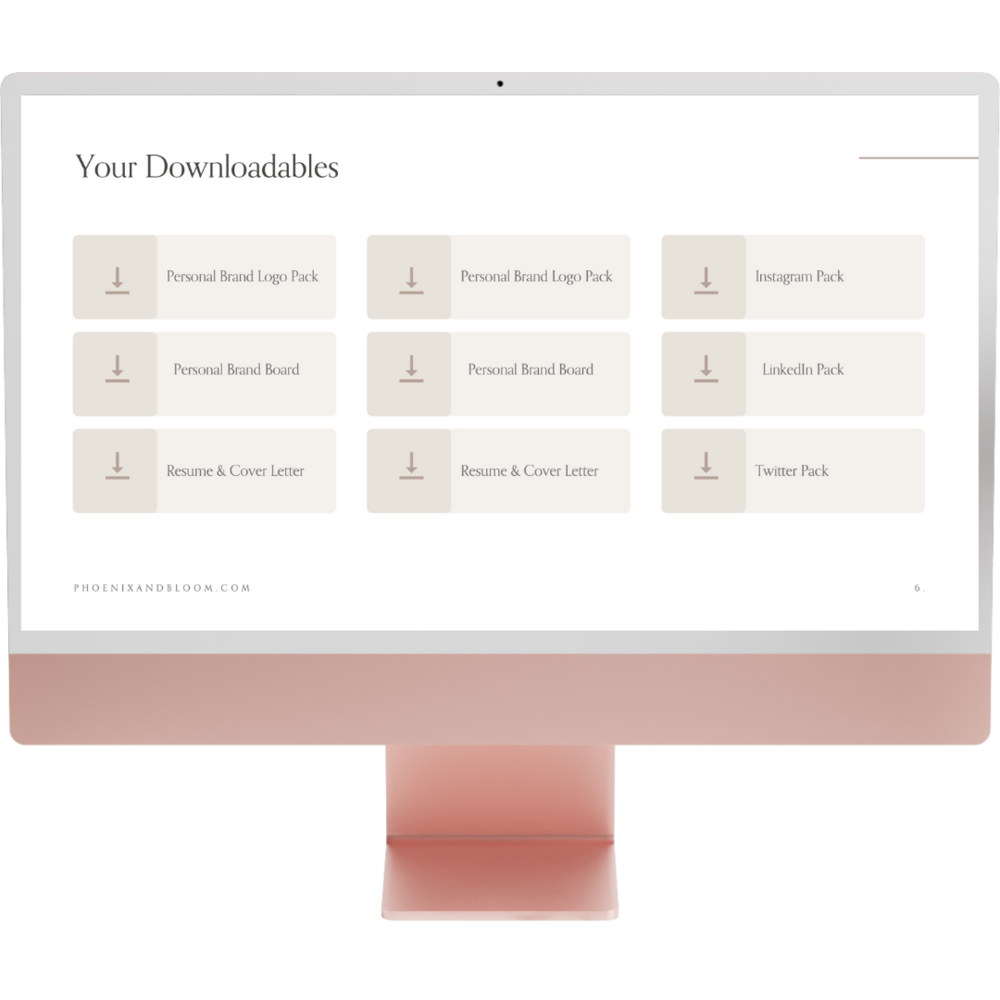
Step 1
Open the pdf document you get with your purchase
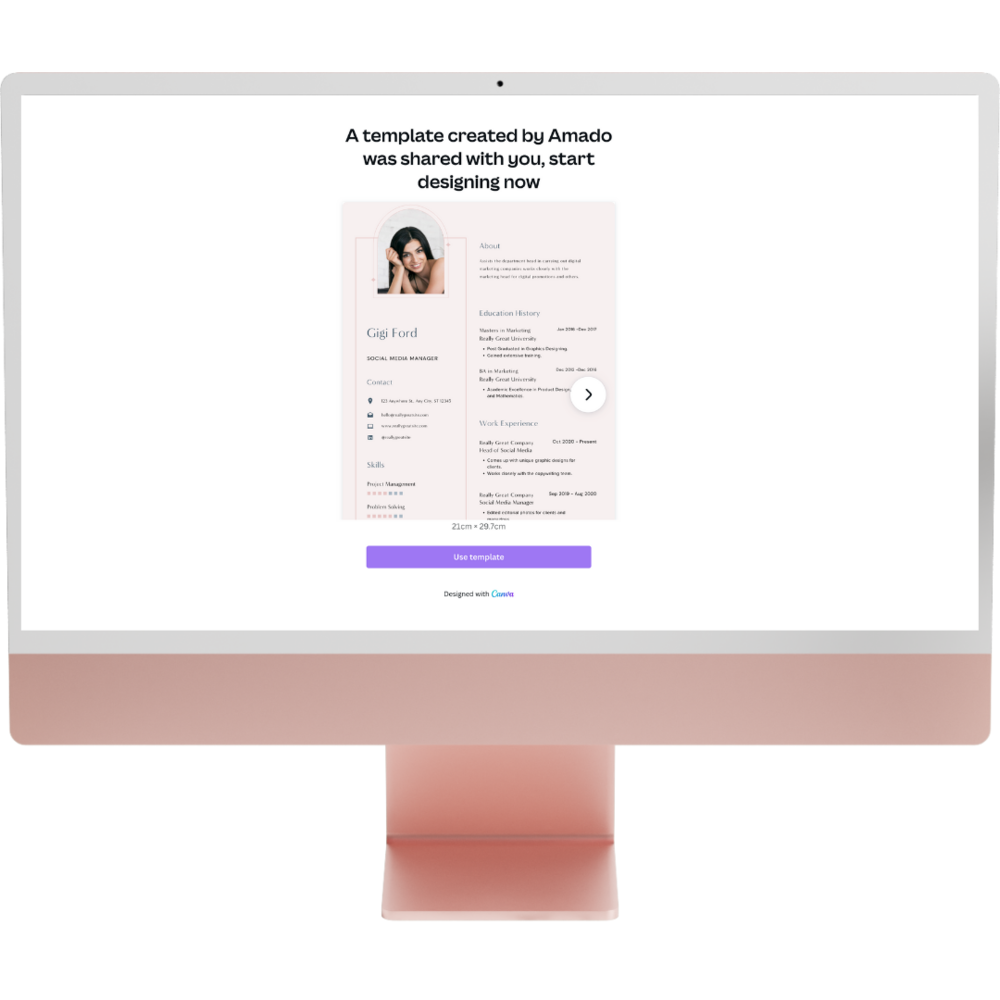
Step 2
Find the item you would like to edit and click on the link
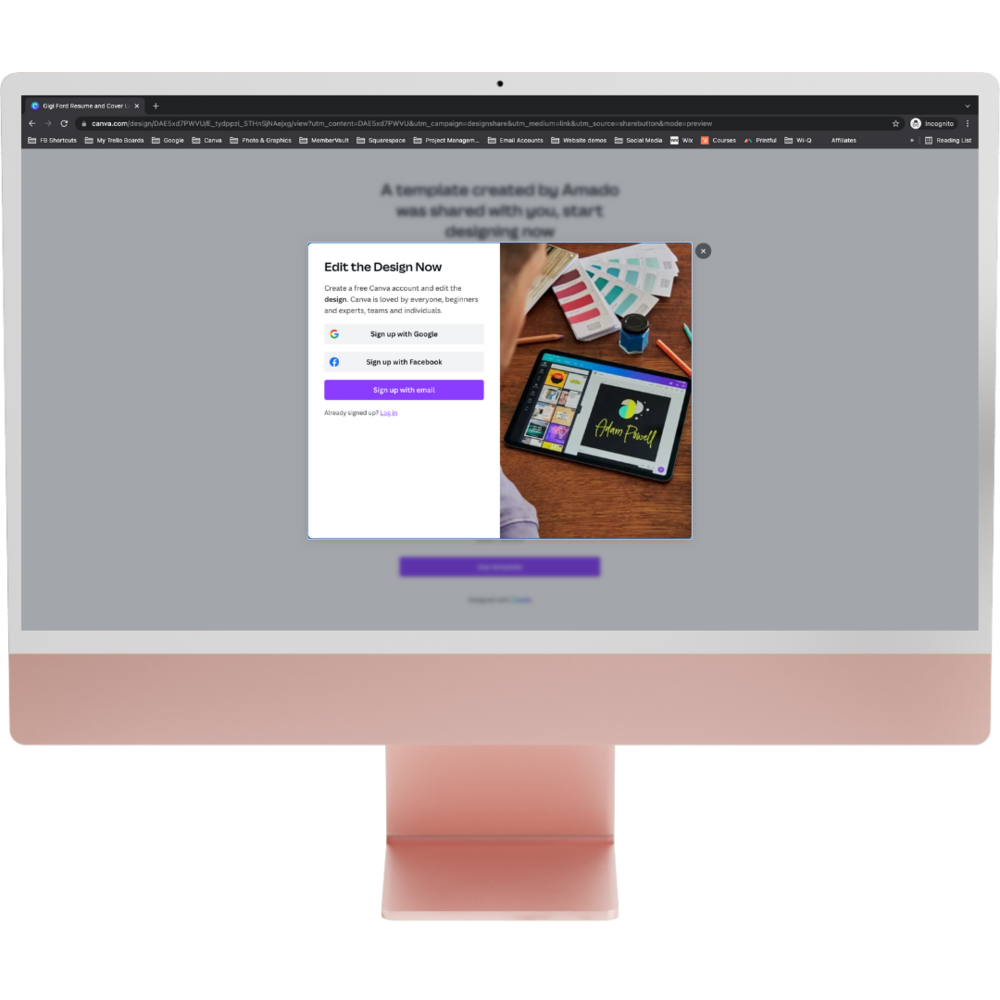
Step 3
All links will take you to Canva and create a copy of the template in your Canva account automatically.
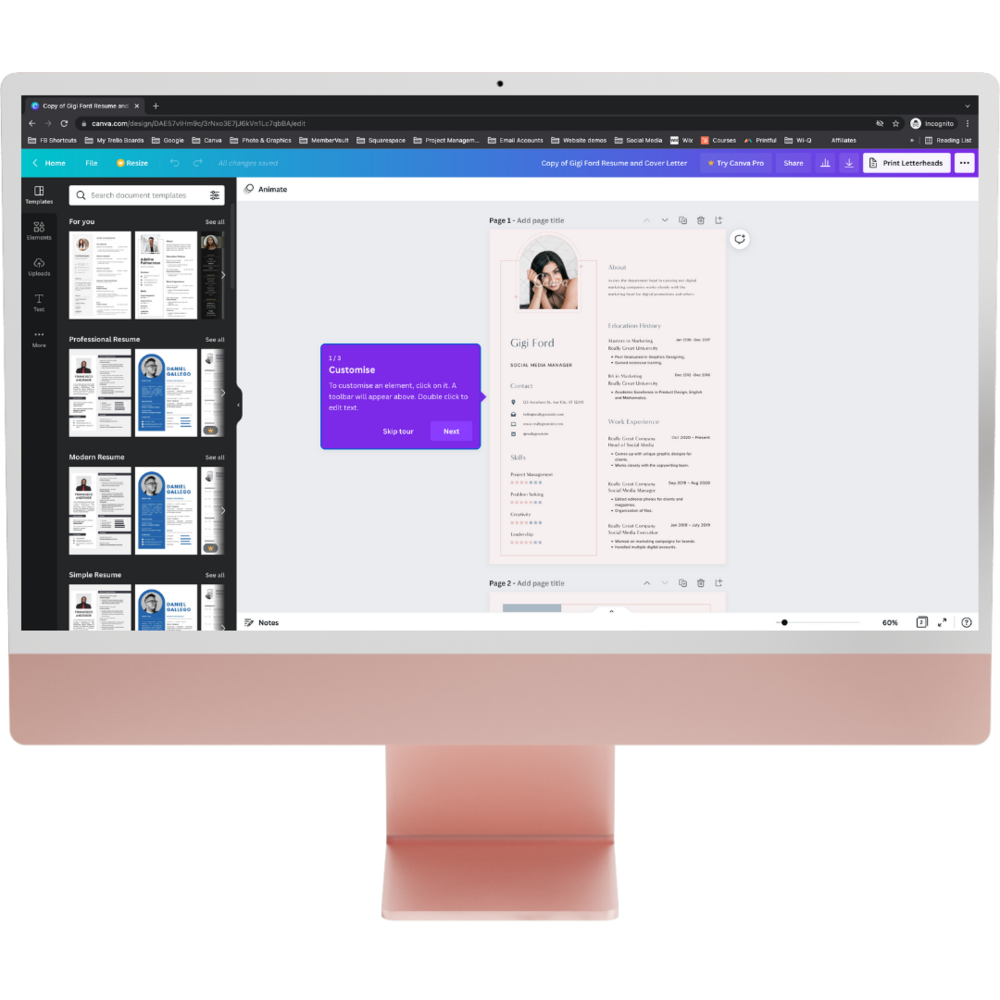
Step 4
You can now edit your template. All the images and colours in the templates are changeable.
Editing Templates
All our design files were created in Canva and can only be edited in Canva. If you don't have a Canva account, you can set one up here (please note that we are Canva affiliates and get a small fee for everyone who signs up through our link). Canva is a very easy platform that helps non-designers to create quality, professional designs.
If you need more tips on designing in Canva, you can view hundreds of tutorials here.
To access your design, follow these steps:
Editing Colours
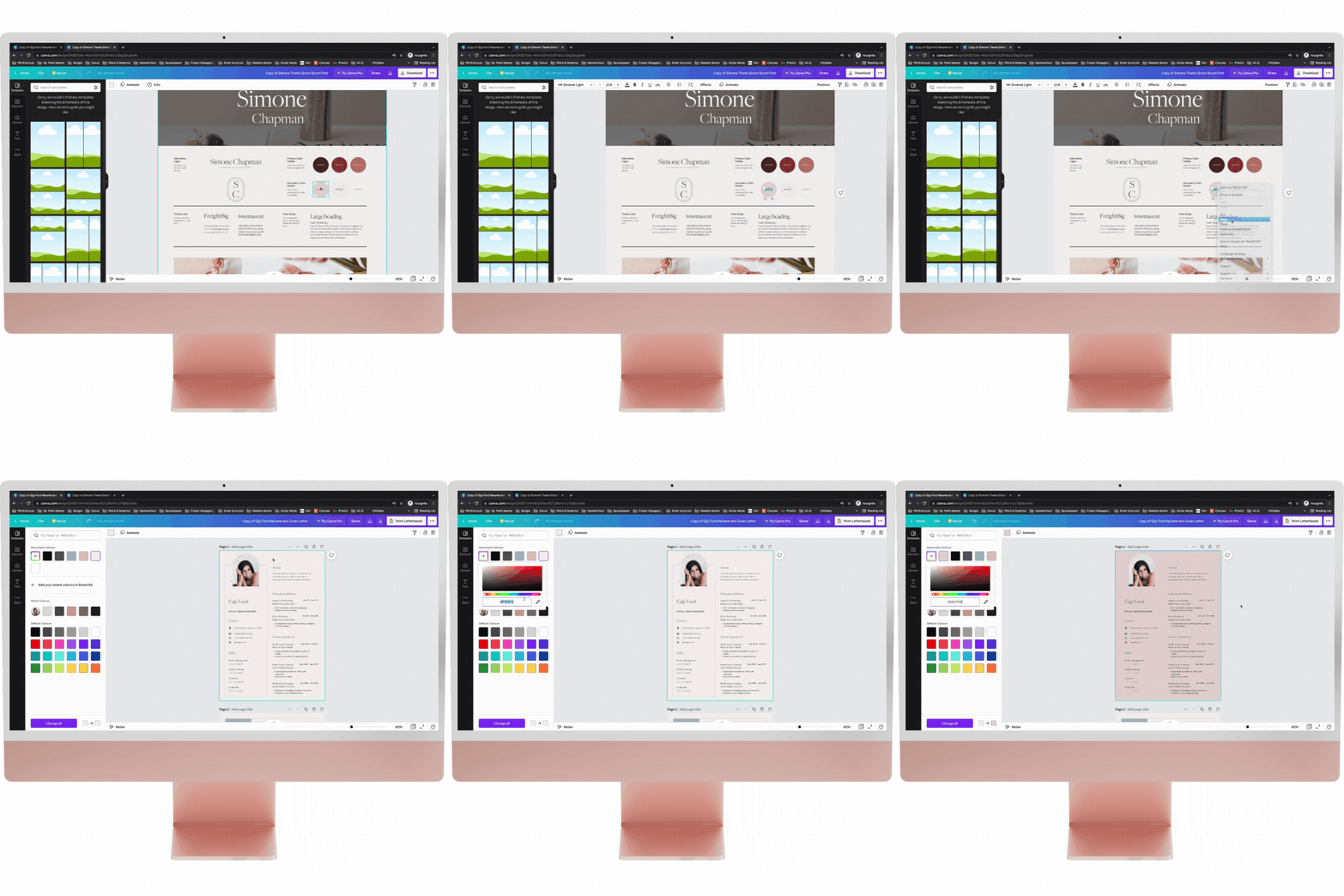
To change the colours, click on the colour you want to change. On the top menu you can choose the colour option to change your colour design.
Your Brand Colours are available to you in your Brand Board (access these in the pdf you get with your purchase).
To use these, just go in to your brand board and copy the hex code (starting with #) then go back to the document you are editing and click on the colour-change button (a colourful little square on the top left of the page) press plus and insert your hex code.
Editing Text
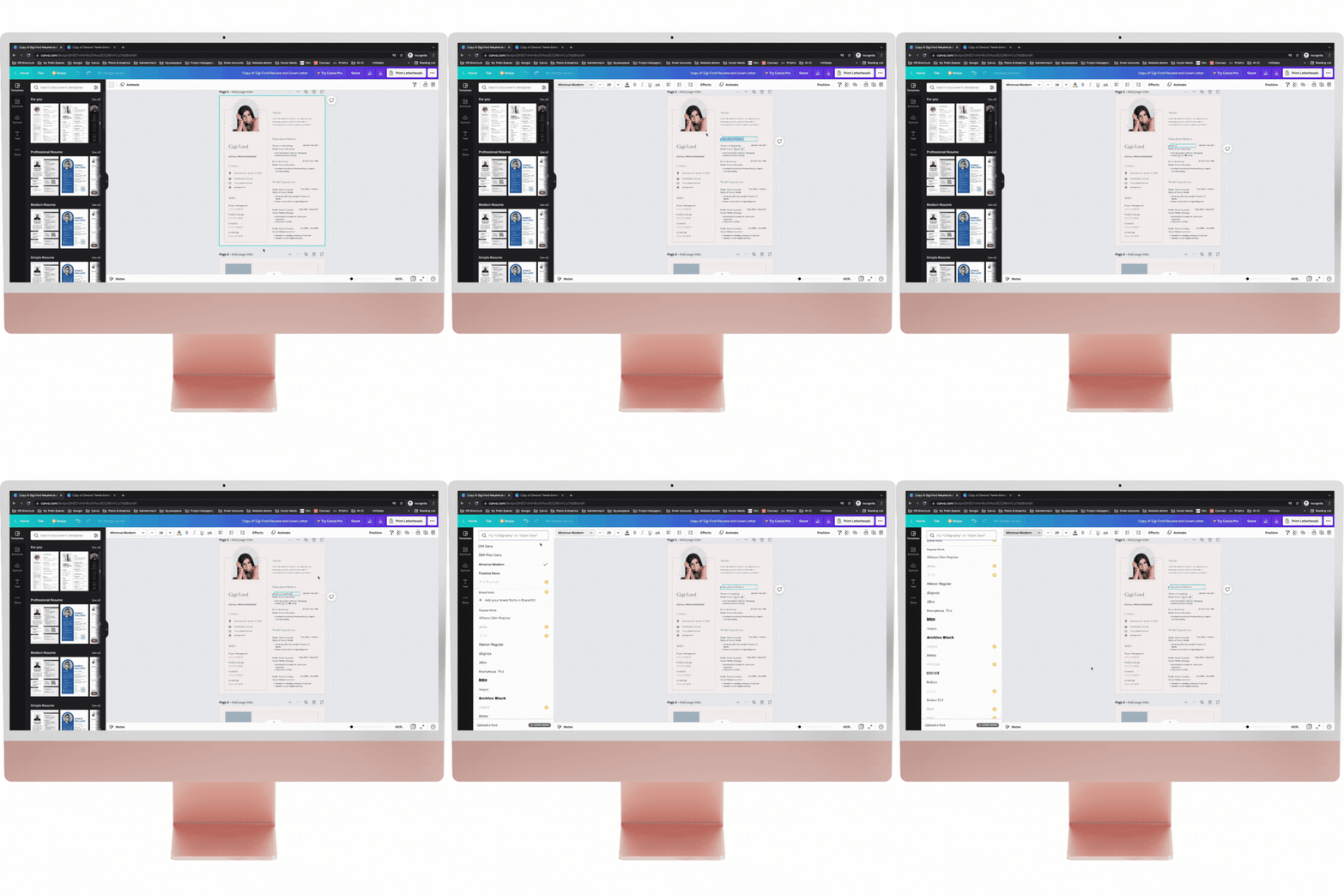
Open your Canva template you would like to edit. Click on the text box you would like to edit. Start typing.
The text you' want to include in the text box may be longer than the space holder text in the box. You easily adjust the box size by dragging it at the edges. You can change the font and on the top of the page on the Canva platform.
We recommend you use your brand font in every design to achieve consistency. You can find your brand font in your Brand Board which is included amongst the deliverables on the pdf you receive upon purchase checkout.

Adding a link to your doc
You can add links to your documents and if you save them as pdfs, they will appear on the doc and are linkable.
Please be aware that although you can add links to anything in Canva, they are only visible and clickable if you save the design as a pdf - it won’t show on images, videos, gifs and svgs.
Editing & Moving Elements
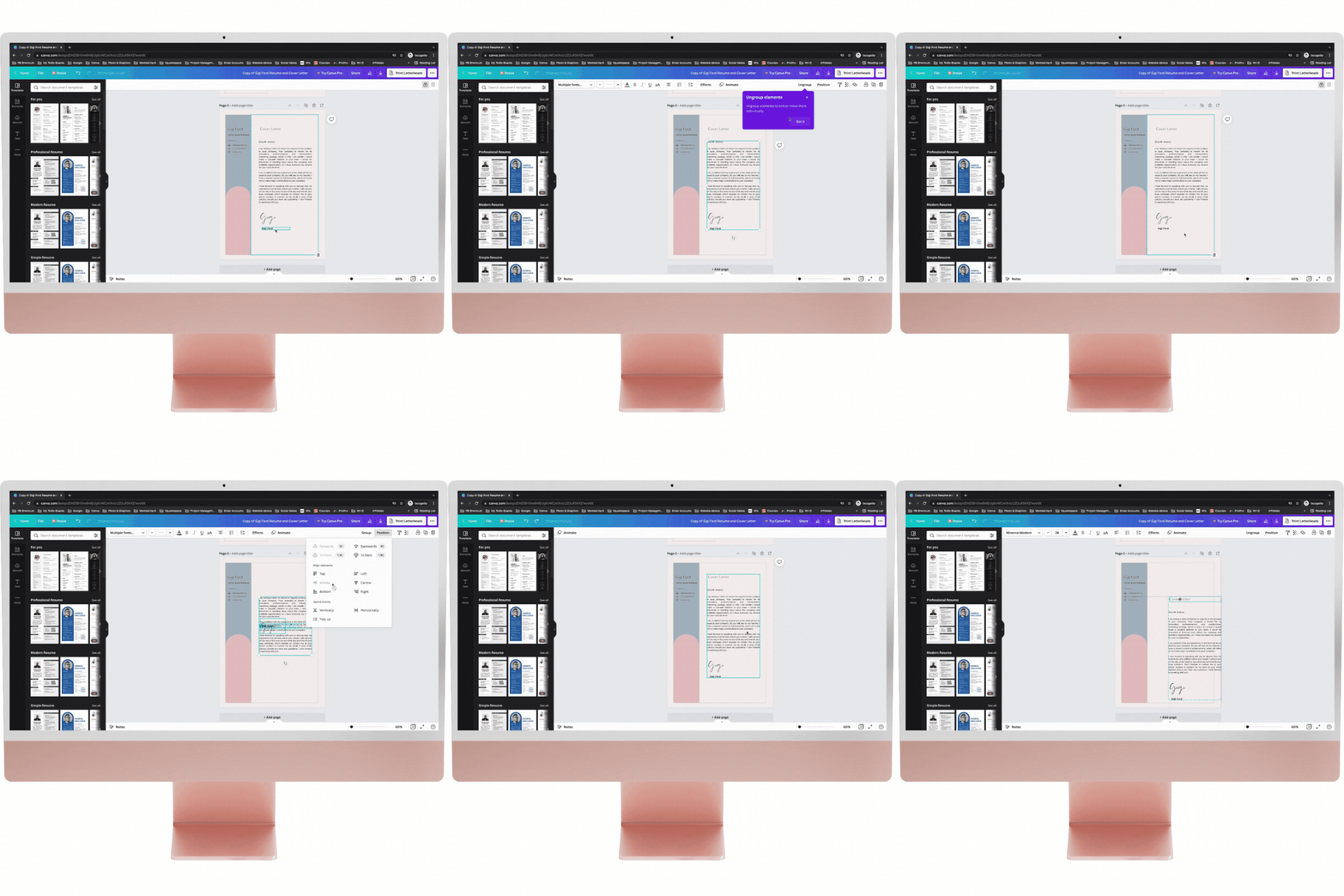
You can move around images by left clicking on your mouse and just dragging them around on the screen.
You can drag around singular objects or group multiple objects and move them around.
You can also position elements by clicking on the Position option on the top right corner.
Locking & Unlocking Elements
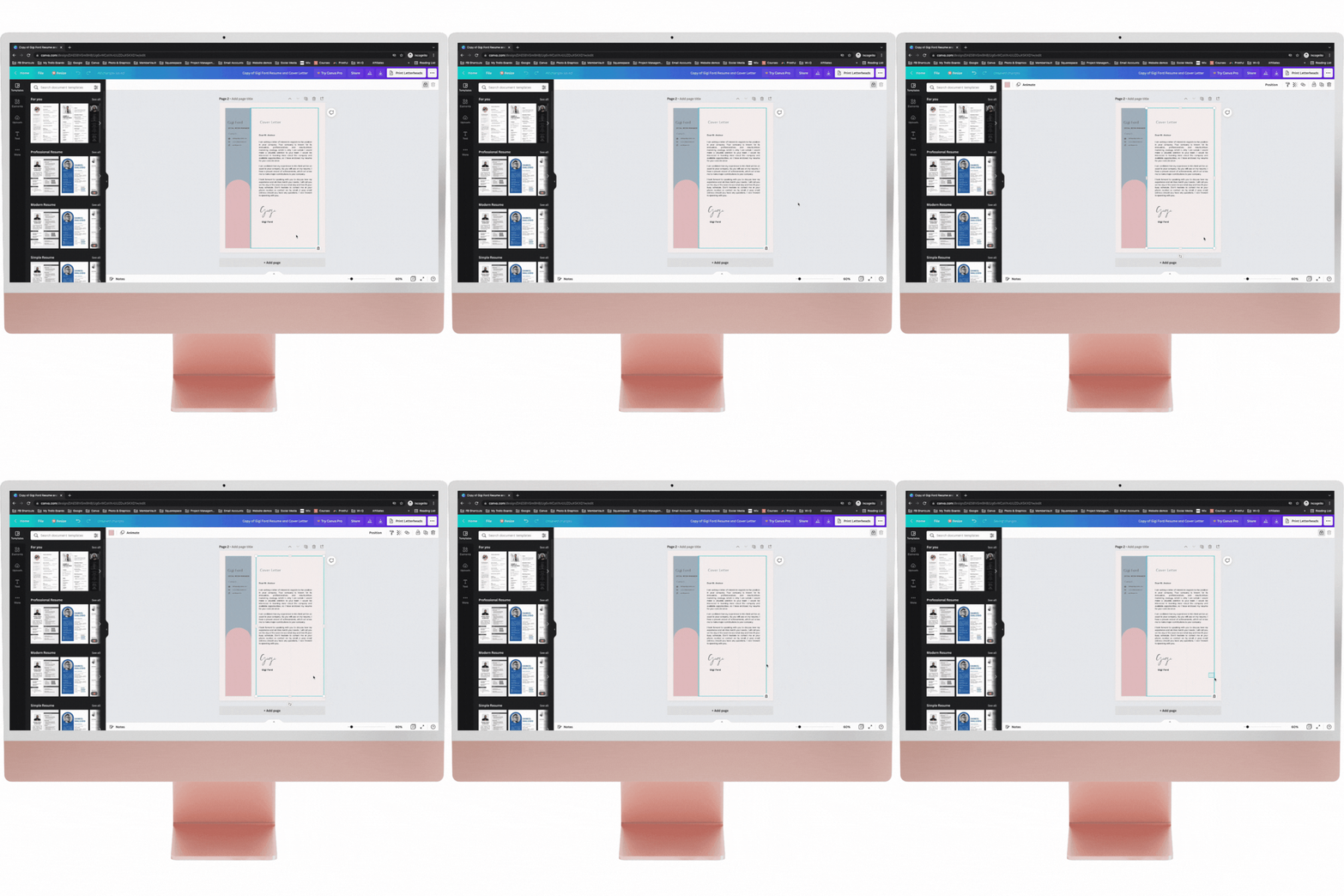
You can lock and unlock elements in Canva and you may find some of the template elements already locked for you.
This is to make it editing other elements easier as once locked, the element - text, object or image - can’t be moved so it is easier to move and edit other elements around it.
If you need to lock or unlock an elment just scroll up to the top right side of the screen and click on the lock symbol.
Editing Images
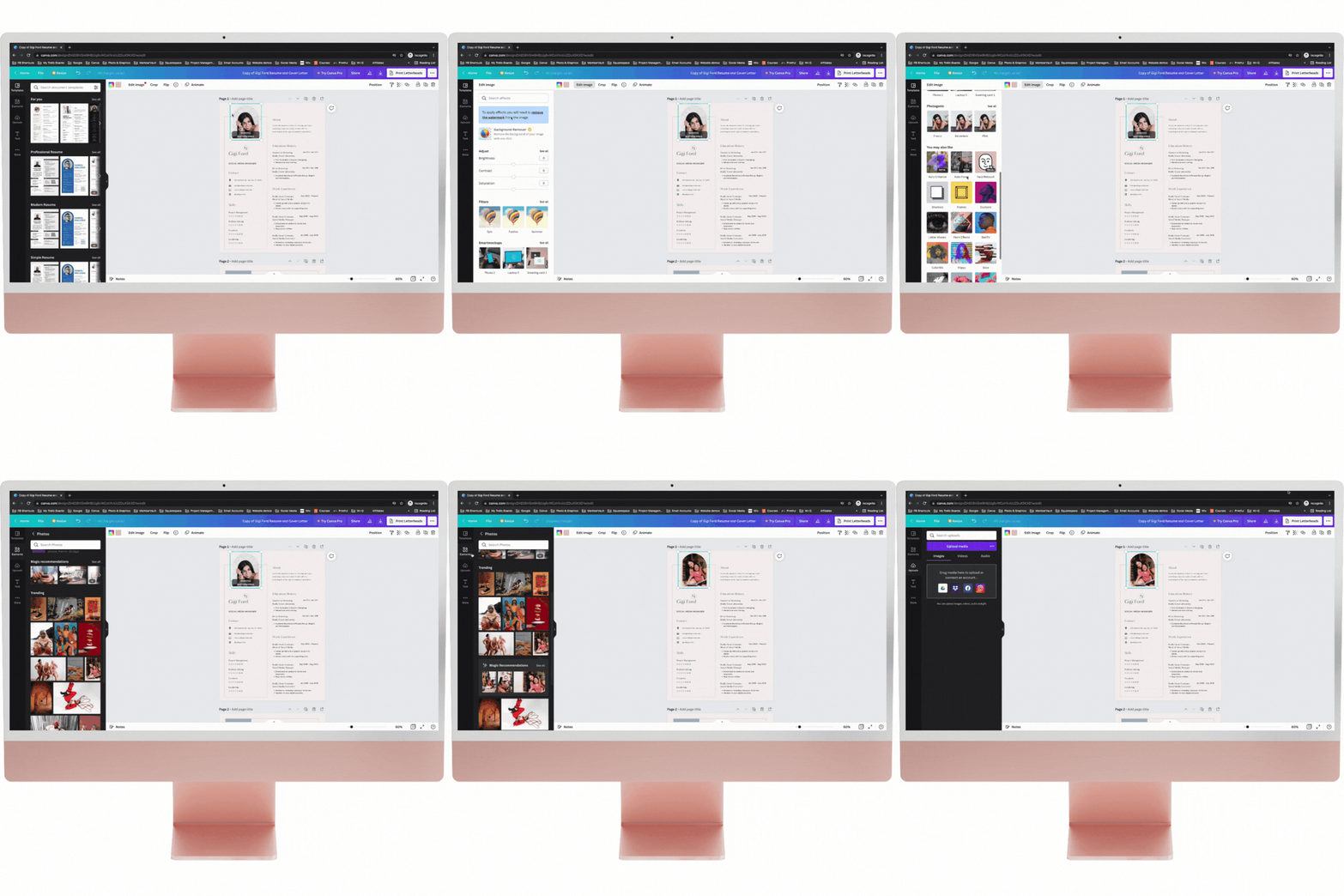
To change the photos, either choose photos from the far left vertical menu or choose uploads where you can upload your own photos. There is a selection of royalty free images included in your package - these are saved in Canva and included in your welcome pack pdf you receive upon checkout. You can download these images (the next section here explains how).
If you need more tips on designing in Canva, you can view hundreds of tutorials here.
Editing Templates
Using Your Logo
Your logo comes in a square and in a rectangle shape so you can use it on various platforms.
Use the square logos as profile pictures on social media channels like LinkedIn, Twitter, Facebook or Instagram.
Make sure you download your logos in png so they are higher resolution.
Using Your Business Card
Your business cards are ready to be printed - either by Canva’s built-in print service - access this by clicking on the 3 dots on the top right corner of your Canva screen - or use print services like Vista and Moo (in the UK). Download your design as png and upload it onto the printing platform.
There are different varieties of front and back pages in your business card design - you can mix and match them.
Using Your Instagram Templates
You can use your Instagram Templates to mix and match on your Instagram feed. Use your post designs on your Instagram grid and your Instagram story templates in your Instagram stories. If you need more templates you can purchase our super bundle as well.
Using Your Email Signature
The email signature can be used on Outlook, Gmail and any other email service. Save it as a png and add it to your email service. You can see how to add your email signature to Gmail here and to Outlook here.
Using Your LinkedIn Templates
There is a profile banner and a blog post header included in your template pack. You can use your square logo to update your Instagram profile picture - or just use a nice professional photo of yourself.
There aren’t any separate LinkedIn post designs included in your pack as you can use the Instagram grid templates for LinkedIn as well. Managing multiple social media accounts is a time-consuming task and to achieve a consistent look, you best use the same templates we have for you in your Instagram pack.
Using Your Twitter Templates
Similarly to Twitter, there is only a head banner design included in your Twitter pack. You can share your Instagram design posts on Twitter as well if you need to.
Using Your CV & Cover Letter Templates
Your CV and cover letter template are available on one design. If you want to download them separately, you can by only selecting the page you need to download. You can also duplicate the resume page if you need to add another page to your CV. There is a duplicate button right above the first page of your design - just click on that and it’ll duplicate the page.
Downloading your designs
PDF Standard - perfect for digitally displayed designs
PDF Print - high quality, good if you need to print something
PNG - high quality image
JPG - smaller size image
SVG - vector
MP4 - video
GIF - animated image
To download your design, click on the download icon in the top right corner which brings up your options. If you added a premium element to your design you may need to pay a small fee for it, alternatively you can upgrade to Canva Premium that includes all premium designs and photos. You can download all your pages or choose the pages you’d like to download.
More Help

Website Template Help

Canva Template Help
License & Copyright Info
General FAQs
-
A common issue you may experience when checking out is the payment failing.
This can sometimes happen when your bank declines the transaction for some reason. This usually occurs when checking out using Stripe.
If you have attempted to checkout using Stripe and the payment does not go through, we recommend trying to checkout with PayPal.
-
When you purchase a product you should immediately be sent a confirmation of your order email. This email contains information about your order and a link to download the product. (This is usually a PDF that includes links to Canva and Squarespace)
Please check your spam/junk folders to see if the email has ended up in there.
If you have not received it, please email us on hello@amadobranding.com
-
When a product is updated, all links to the product will take you to the updated version.
Open the original pdf you received with your purchase and click the product link in your original email purchase invoice.
-
Unfortunately not, however if you are really unhappy with the template or course you bought, please email us on hello@amadobranding.com